Claude computer use comes to Team and Enterprise plans in beta, with admin app controls
Anthropic is rolling out computer use to Claude Team and Enterprise plans in beta. It is off by default, and admins decide who gets it and which desktop apps Claude may touch. Here is what to check first.
- Author
 Umair Mateen
- Published
- Reading time
- 5 min
- Category
- AI
Ideas in this post
Tap one for a 5-second answer. Underlined words in the article work the same way.
0 of 4 understood
Anthropic began rolling out to Claude Team and Enterprise plans on 20 November 2026, according to the Claude release notes. Computer use lets Claude see a person's screen and work in the desktop apps they allow, clicking and typing the way a person would. It is in beta, reaching organisations gradually, and it is off until an owner turns it on.
This matters because many business tasks live in apps that have no connector or : an old accounting package, an internal admin screen, a supplier portal. Computer use is the fallback that lets Claude work in those too. It also means a company now has to decide which apps an AI may operate on staff laptops.
What it does and where it works
The admin setup guide says computer use runs through Claude Desktop on macOS 14 or later and on Windows. It works in the new combined Claude experience, so the organisation needs the "Chat and Cowork unified" capability on. People can also start it from Claude on the web or on their phone, as long as the organisation's separate "Computer access" setting is on and a computer with Claude Desktop open is connected.
Quick check · Side by side
Screen or API: which route suits the job?
Tap what matters to you (pick one or more) and see which option fits.
Computer use (screen)
- Works through the screen like a person would
- Describe the job and watch it work
- Slow: every step needs a screenshot and a decision
- Pop-ups or moved buttons can throw it off
- Reads any text on screen, so it can be tricked
API connection
- Not possible without an API to connect to
- Someone has to build the connection first
- Fast: data moves directly between systems
- Unaffected by how the screen looks
- Gets structured data, though inputs still need checks
Pick what matters to you and the better fit lights up.
From the explainer What is a computer-use agent? Explained with a temp at a spare desk
Per the same guide, it does not work in tasks started with the separate Cowork option or in Claude Code for these plans. Organisations with a HIPAA-ready configuration, customer-managed keys, Zero Data Retention for Claude Code, or education (FERPA or K-12) settings can't turn it on at all.
Anthropic's general computer use article explains that Claude tries connectors first, then a browser, and only works on the screen when neither will do. Screen work is slower and complex tasks may need retries.
The controls admins get
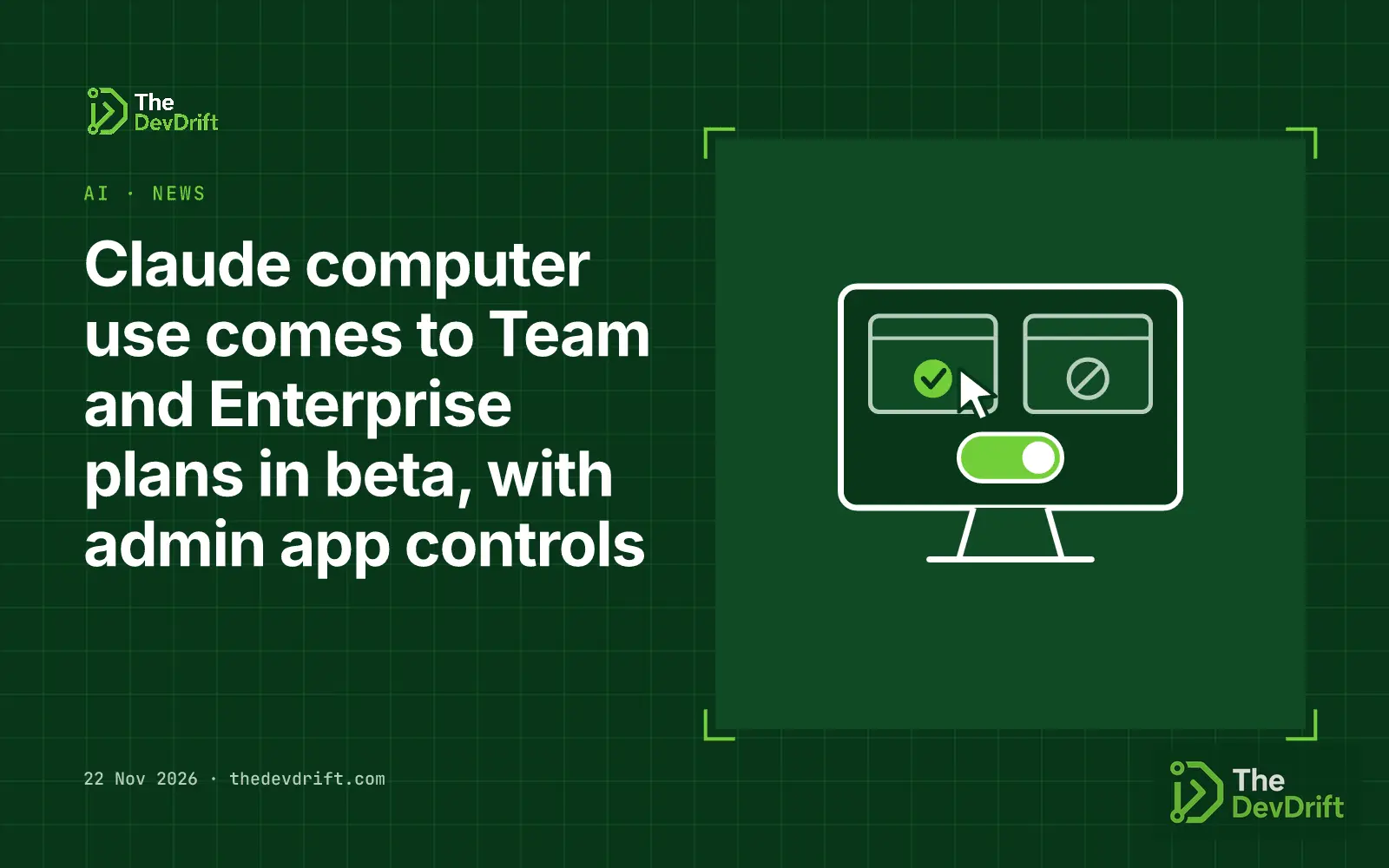
- On or off. Only an Owner or Primary Owner can enable it, under Organization settings, Capabilities, Claude Desktop. Turning it off can take about an hour to reach everyone's computer.
- Who gets it. Enterprise plans can limit it to certain roles. Team plans don't have custom roles, so that role-level choice isn't available there.
- Which apps. Owners can keep a block list, or an allow list where every other app is denied. Users still approve each app when Claude asks to use it. The guide says the lists are sent to users' computers, so they shouldn't contain anything confidential.
- Per computer. IT can switch it off on specific machines through device management (MDM) with a
computerUseEnabledpolicy set to false. MDM can't turn it on or approve apps.
The caveats to read before switching it on
Anthropic is direct about the risks. The setup guide says there is no sandbox between Claude and a user's apps, and that content on screen, such as a web page or an email, could lead Claude to take actions nobody asked for. This is the problem: instructions hidden in content the AI reads.
Approved apps can also open, change or delete files outside a user's connected folders, and folder limits and read-only settings don't apply. The app lists have gaps too: they don't cover websites and browser extensions inside an approved browser, apps inside a remote desktop window, or text copied out of a blocked app.
Screenshots are saved with the chat and may include confidential information. The guide says an automated safety check can see the latest screenshot, and Anthropic can keep a copy as part of its record of that check. The general article advises against using computer use with banking, healthcare, government or legal apps, and with apps holding other people's personal data. It also says investment, trading and cryptocurrency apps are blocked by default.
One more thing: Anthropic's help pages aren't fully in step yet. The general article still says in one place that Team and Enterprise plans don't have access, while the release notes and admin guide describe the beta. Expect the rollout to reach organisations at different times.
What to do this week
- Decide before staff ask. Owners should decide whether to pilot it, and with which team. It stays off unless you act.
- Start with an allow list, not a block list. Pick two or three low-risk apps for a pilot, such as a spreadsheet app or an internal dashboard with no customer data.
- Keep sensitive apps out. Finance, HR, health and password tools should stay off the list.
- Use MDM on sensitive machines so computer use stays off there whoever signs in.
- Tell the pilot group the rules: close confidential windows first, watch the first runs, and stop Claude if it heads somewhere unexpected.
If you're weighing where an agent like this fits in your workflows, The DevDrift helps teams set up AI automation with approvals and audit trails.
Sources
You’ve read the news. Now understand it.
- Learn · 5 min · Side by sideWhat is a computer-use agent? Explained with a temp at a spare deskA computer-use agent is an AI that works apps the way a person does: it looks at screenshots, then clicks and types. Explained with a temp at a spare desk who can only use the screen, mouse and keyboard.Start in 5 seconds →
- Learn · 5 min · Everyday ↔ realWhat is an API? Explained with a waiter in a restaurantAn API is a set of rules that lets one program ask another for data or a task and get an answer back. Explained with a waiter carrying orders between you and the kitchen.Start in 5 seconds →
- Learn · 5 min · Myth or factWhat is encryption? Explained with a sealed envelopeEncryption scrambles data with a secret key so only someone with the right key can read it. Explained as the difference between a postcard and a sealed envelope.Start in 5 seconds →
- Learn · 5 min · Spot the weak pointWhat is prompt injection? Explained with a forged note in the in-trayPrompt injection is when hidden instructions inside an email, web page or file trick an AI model into following an attacker instead of you. Explained with a forged note slipped into an assistant's in-tray.Start in 5 seconds →